Price Calculator for Website Services
Clients increasingly expect to get a quick overview of prices — not just for products, but for services too. Often services are standardised enough that adding a price tag is fairly straightforward. For content creation and marketing services, things are more complex, but not impossible: I built a price calculator for the website creation service. Below I describe the process.
Pen and paper first
I started by working out the logic of the price calculator on paper — what the price depends on and by how much, where things could be simplified, and which options would be easy for the client to understand. I had seen price calculators that were just a long stream of hard-to-follow questions. That was exactly what I wanted to avoid at all costs. So I had to simplify quite a bit. This was helped by the magic word "approximately" next to the price, along with a service description on the same page.
Generating ideas with AI
I told Gemini Brainstormer Gem that I wanted to vibecode (i.e. build with AI assistance) a price calculator. In response, I got a bunch of questions, which I answered. That's how the planning got started.
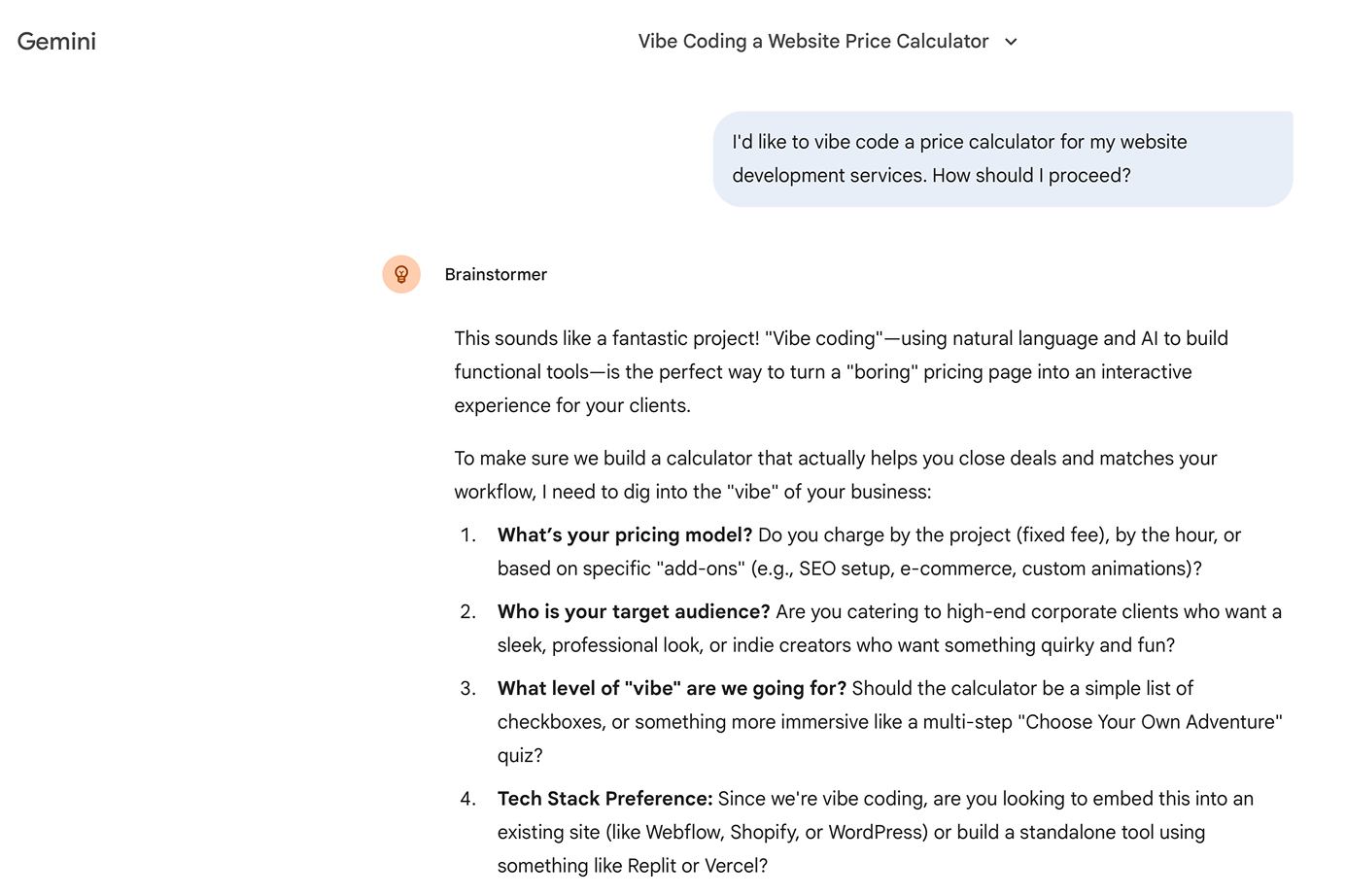
I communicated with the AI in English, but it works (almost) just as well in Estonian. Instead of Gemini, you could also use Claude, ChatGPT, or any other AI you prefer.
After a while, Gemini wrote me a finished prompt to use for building the price calculator in Cursor. Then it suddenly occurred to me that I needed the calculator in Estonian — meaning the field labels also had to be in Estonian. Gemini translated, and I made adjustments.
At the end of the conversation, Gemini mentioned almost in passing that for use on a website, the code generated by Cursor should be in full HTML format, and added the appropriate sentence to the end of the prompt. That was a very useful addition, because I hadn't thought of it myself.
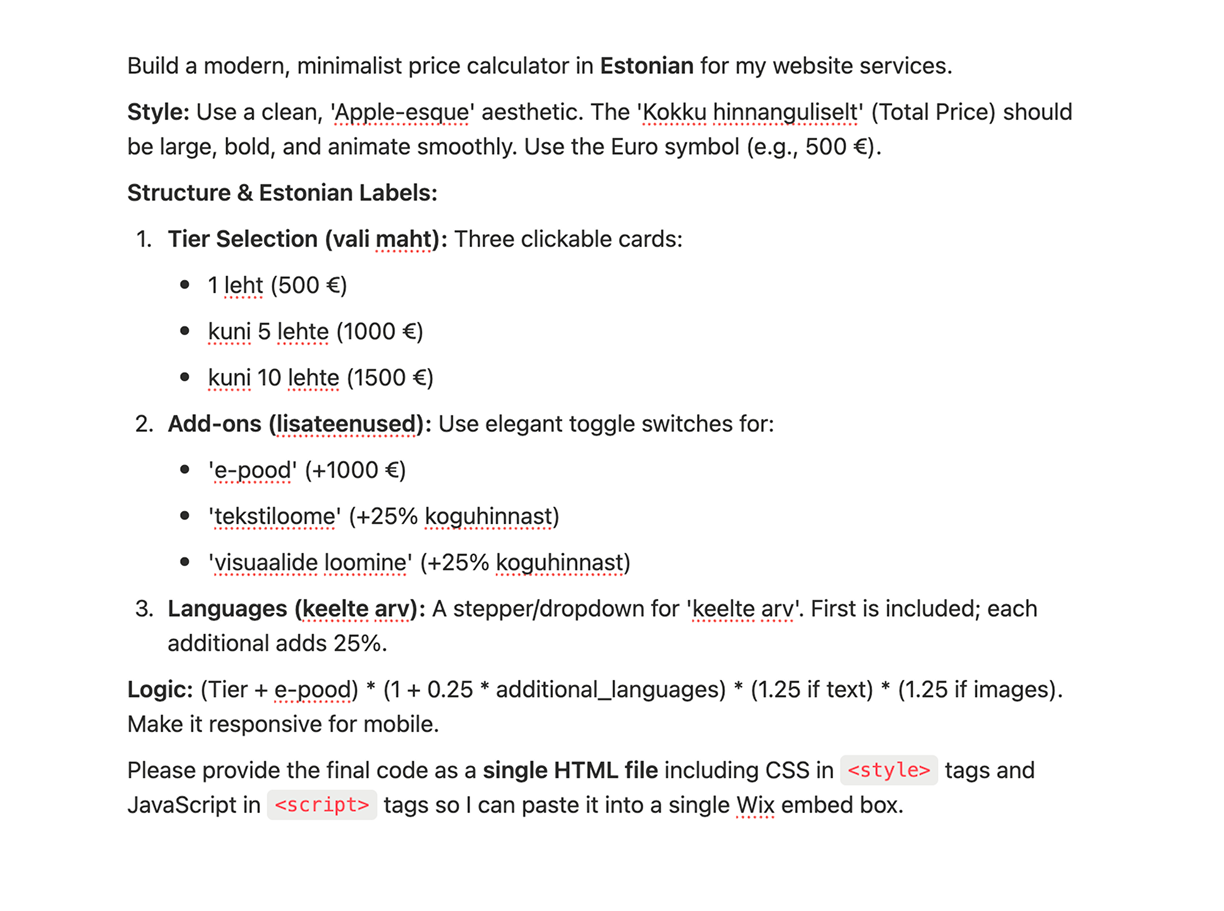
This is how the final Gemini prompt for Cursor looked like.
From Gemini's prompt into Cursor
In Cursor, I opened the planning mode and asked it to rewrite the Gemini prompt more clearly and effectively. The result was a thorough planning file.
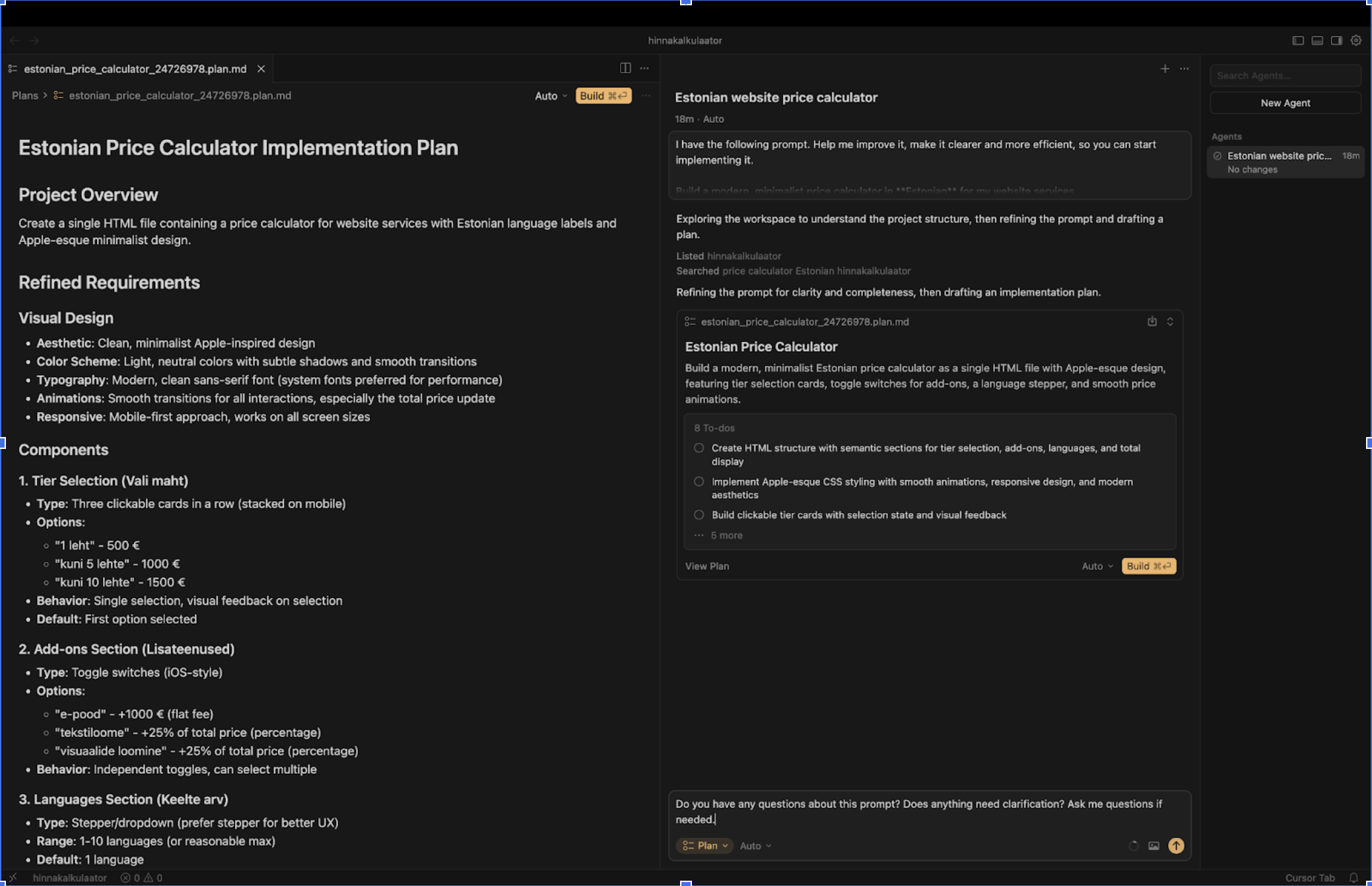
The conversation in Cursor's planning mode happens in natural language, without any code.
I then asked whether Cursor had any relevant questions for me, and answered them.
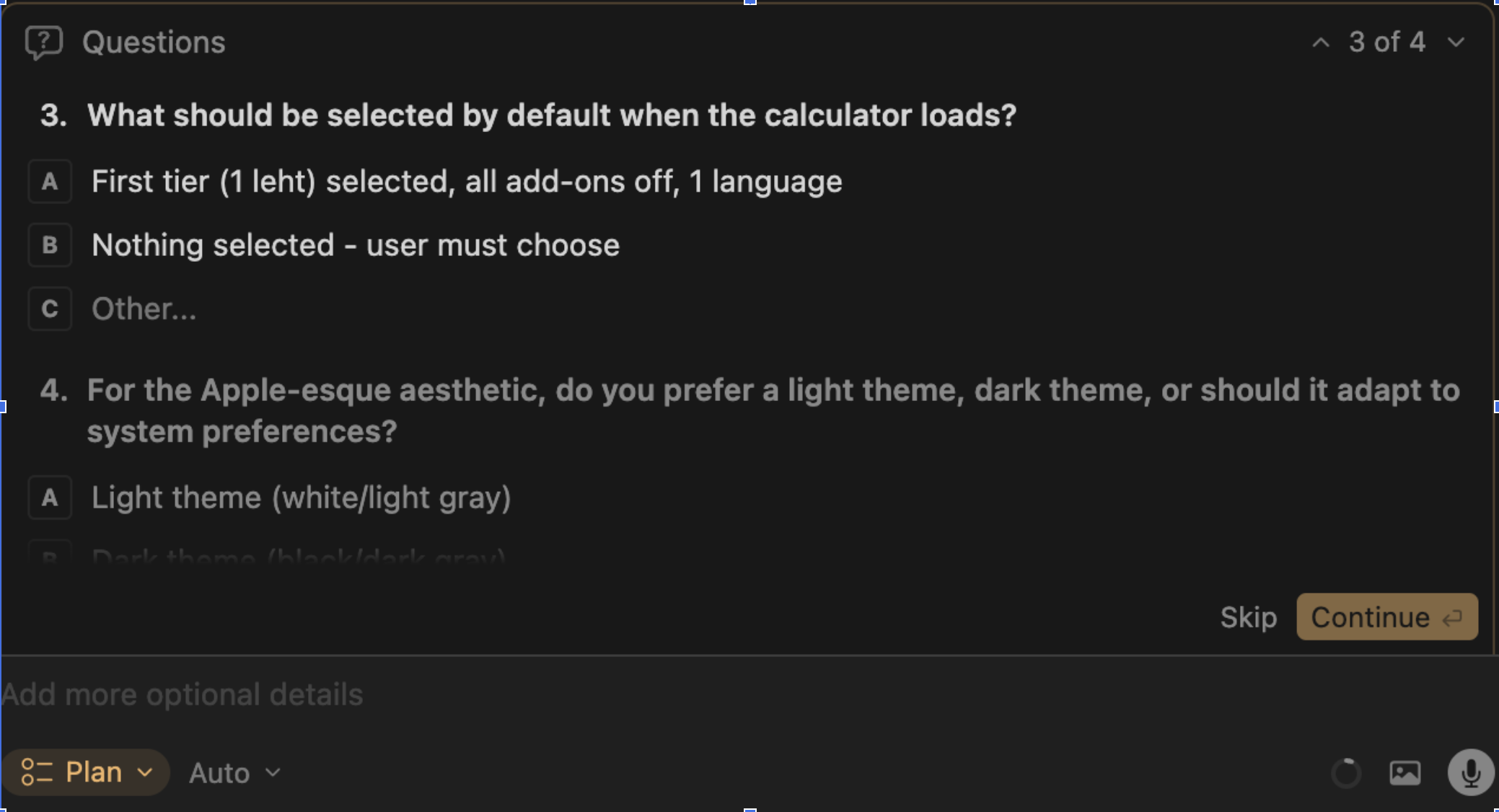
In the planning mode, Cursor asks questions and conveniently offers answer options to choose from.
For example, neither I nor Gemini had thought about which options should be active by default when the price calculator loads. Or whether the design should be in light or dark tones. I asked for a transparent background — that way the calculator blended better into the website.
And then it was time to start building according to the plan. That sounds impressive, but it really just meant pressing a button — and before long, the HTML code was ready. I opened the file in a browser and noticed a subheading that seemed unnecessary. I asked Cursor to remove it.
From Cursor to the website
I inserted the refined price calculator's HTML code into our website and checked how everything looked and worked. I tested different screen sizes. Then I made one final change in Cursor — I asked it to replace the blue colour of the numbers with the website's green (now on this website, it's blue again). I copied the code anew, and it was done.